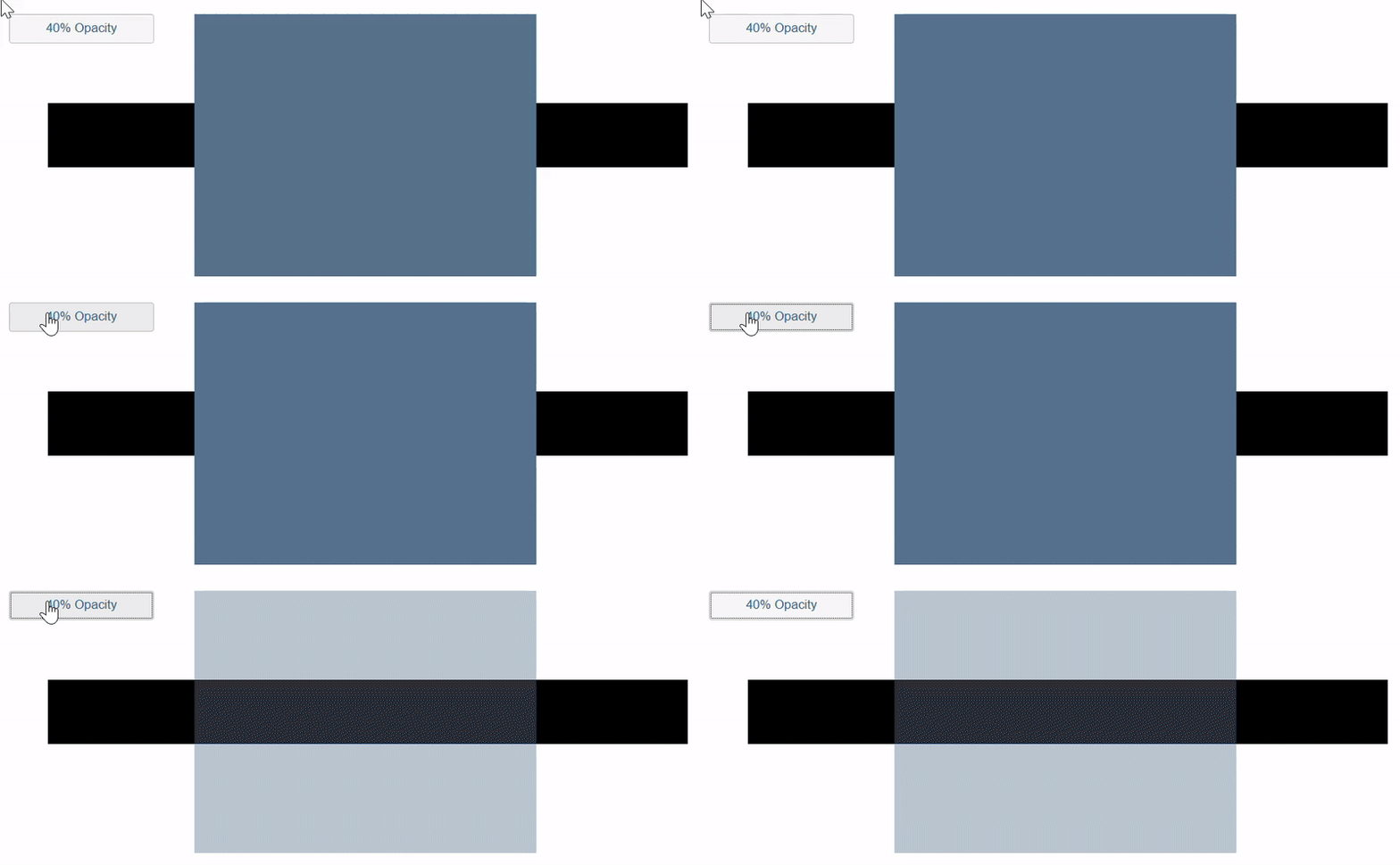
The first step is to create CSS classes that will be applied to a panel,
in this example 11 classes have been created ranging from 0 – 100% opacity
.panel_0 .sap-custom-panel-widget{opacity:0;}      		/*set opacity to 0%*/
.panel_10 .sap-custom-panel-widget{opacity:0.1;}		/*set opacity to 10%*/
.panel_20 .sap-custom-panel-widget{opacity:0.2;}  	/*set opacity to 20%*/
.panel_30 .sap-custom-panel-widget{opacity:0.3;}		/*set opacity to 30%*/
.panel_40 .sap-custom-panel-widget{opacity:0.4;}		/*set opacity to 40%*/
.panel_50 .sap-custom-panel-widget{opacity:0.5;}		/*set opacity to 50%*/
.panel_60 .sap-custom-panel-widget{opacity:0.6;}		/*set opacity to 60%*/
.panel_70 .sap-custom-panel-widget{opacity:0.7;}		/*set opacity to 70%*/
.panel_80 .sap-custom-panel-widget{opacity:0.8;}		/*set opacity to 80%*/
.panel_90 .sap-custom-panel-widget{opacity:0.9;}		/*set opacity to 90%*/
.panel_100 .sap-custom-panel-widget{opacity:1;}		/*set opacity to 100%*/
Code language: JavaScript (javascript)
e.g. in a button add the script below to set Panel_4 opacity to 40%
Panel_1.setCssClass(‘panel_40’);
You could add all the CSS classes to an array and loop through them to create a fade effect.